

Make sure you have access to Factory before getting started.
Step 1: Launch Factory
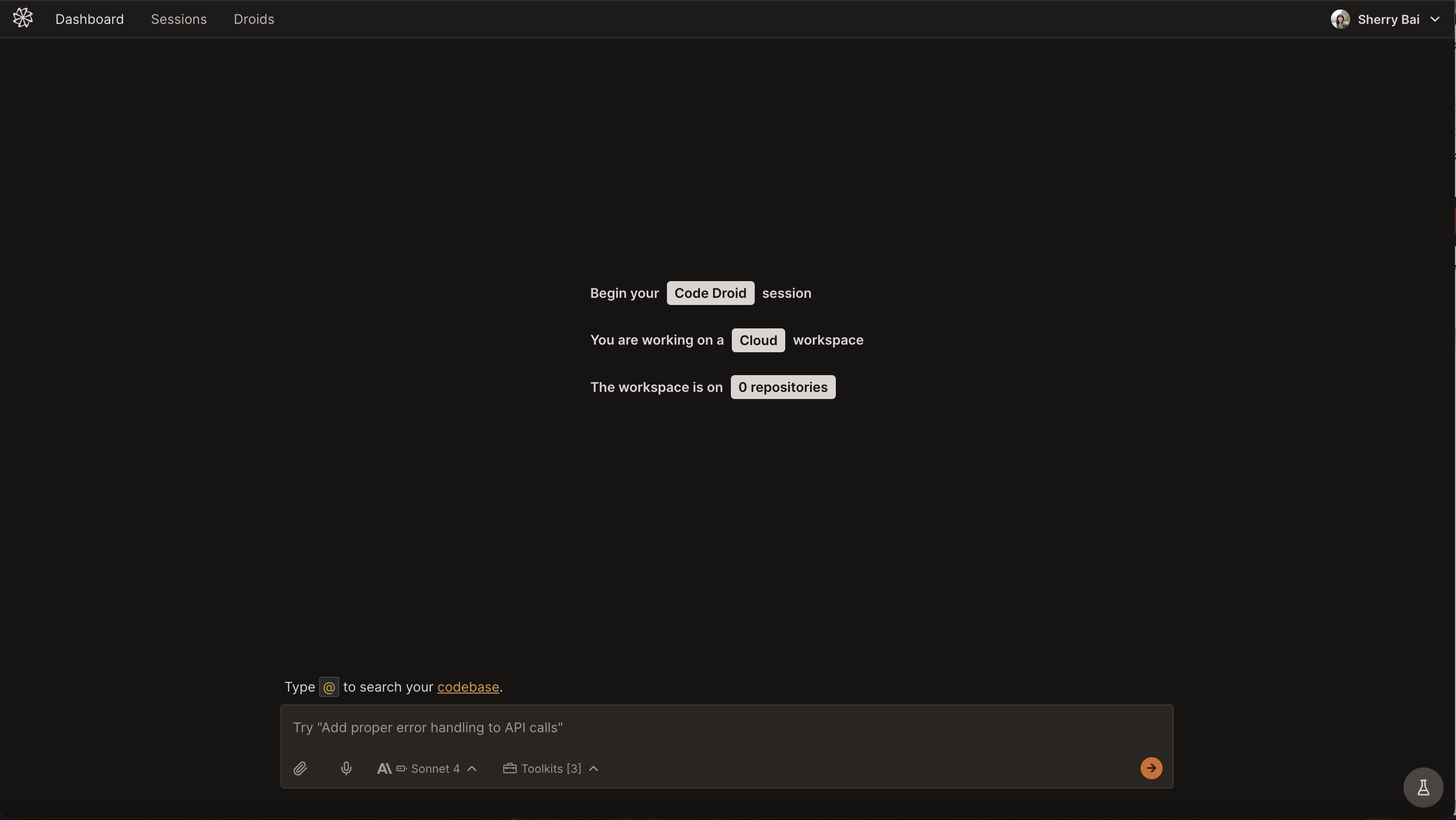
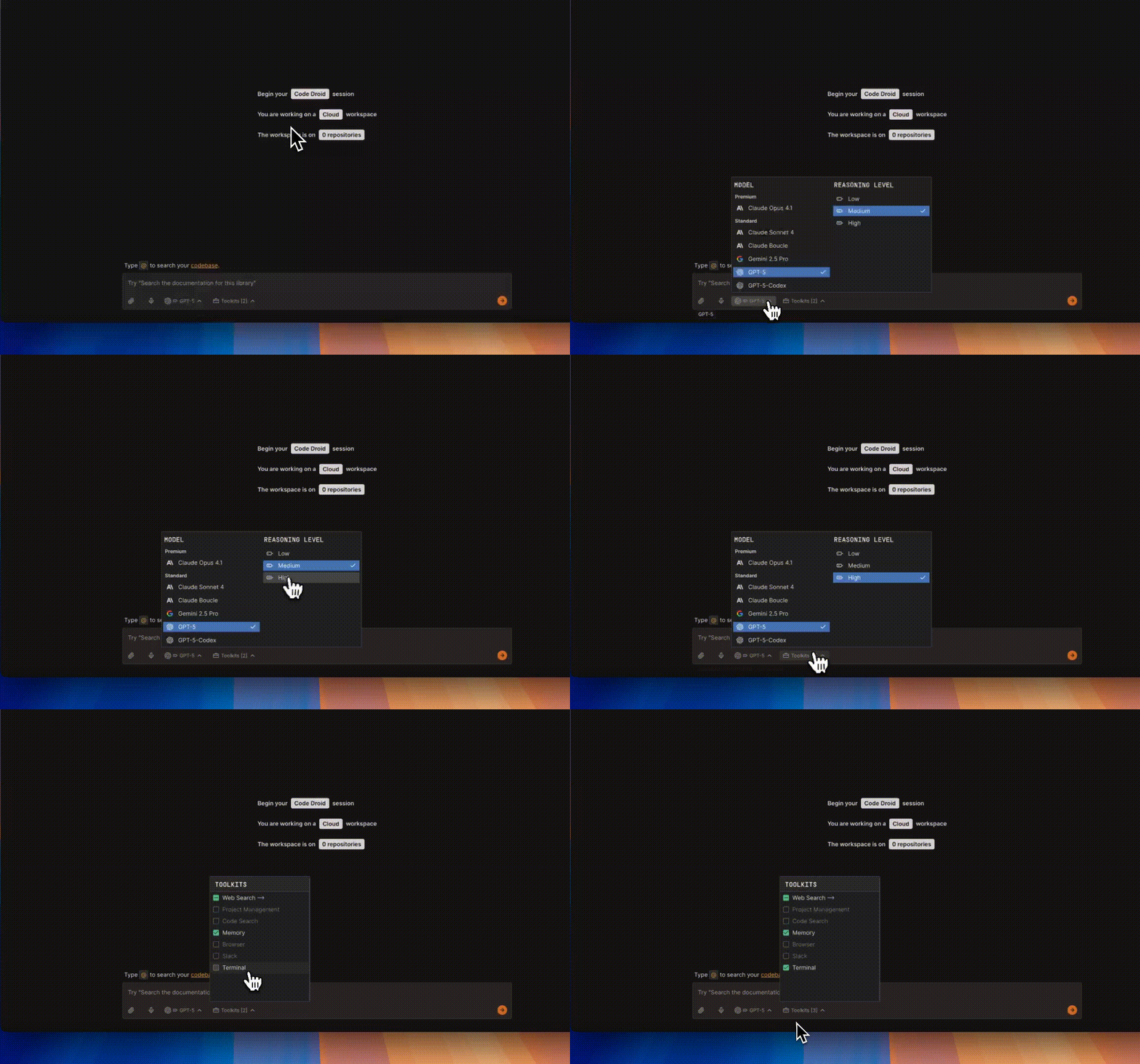
Step 2: Configure Your Session
Select Your Droid
Click the Droid Selection button to choose the appropriate droid based on your project needs.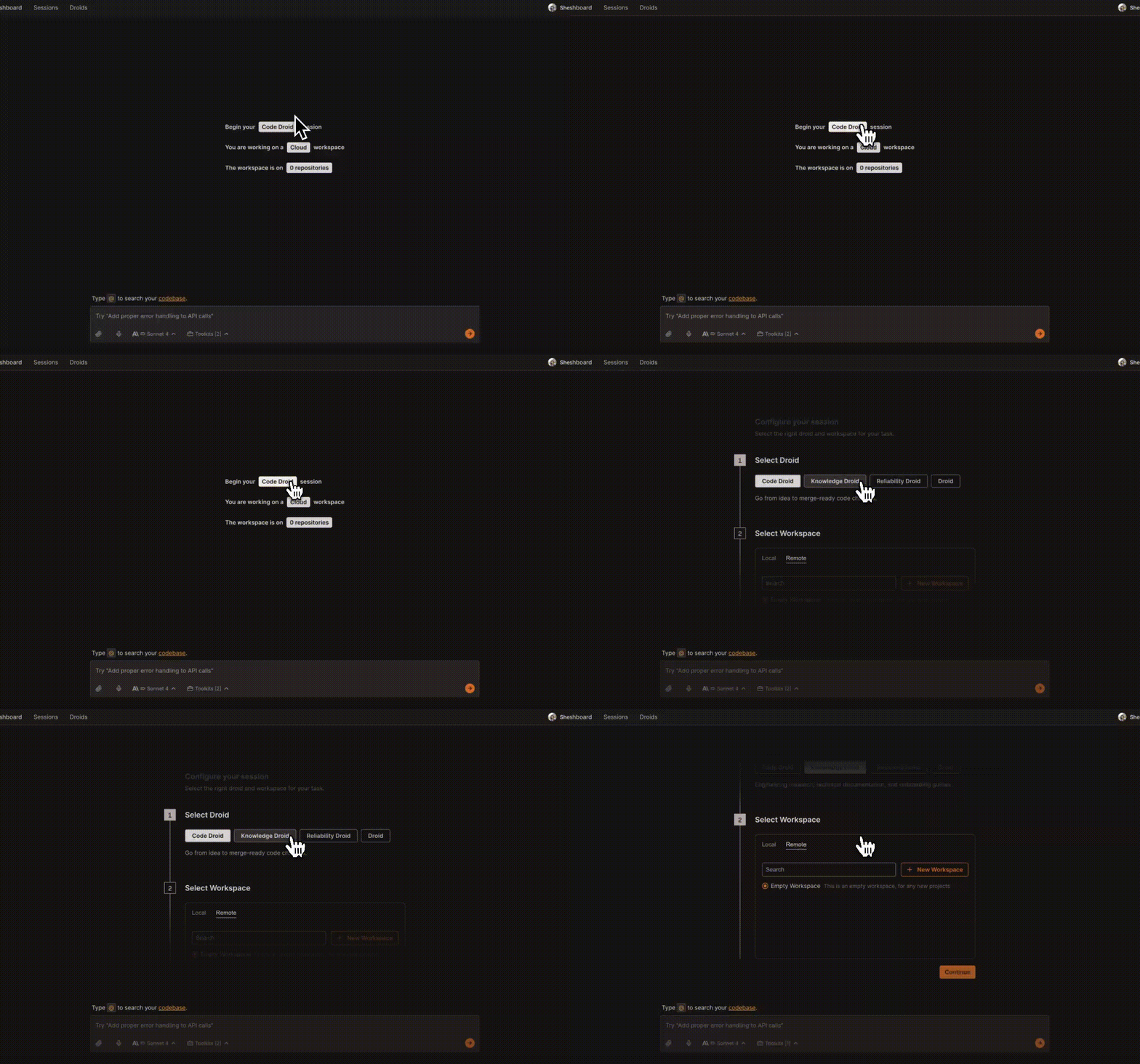
Select Your Machine Connection
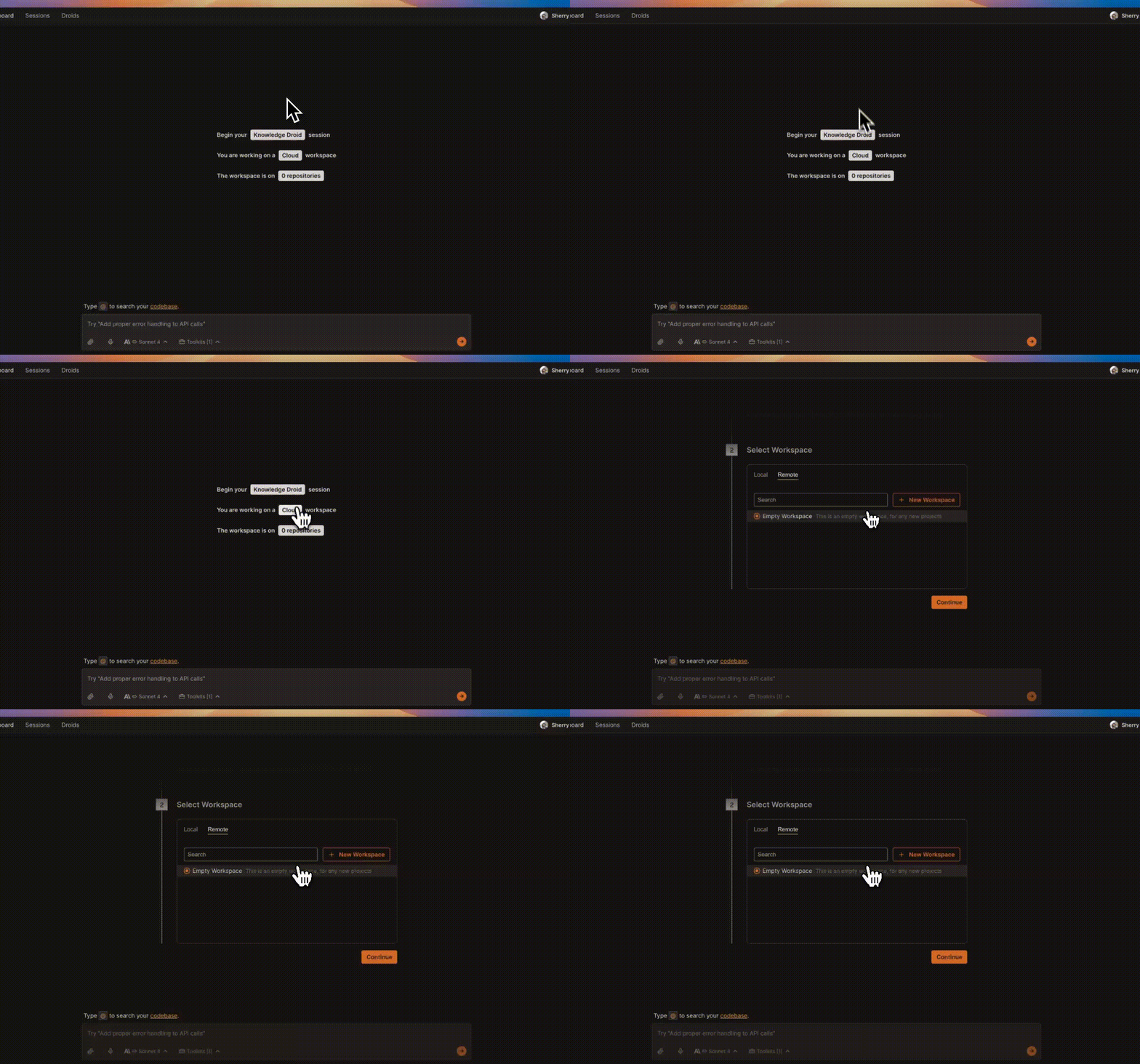
Local Connection (Bridge)
- Download Factory Bridge and open the application
- Enter the pairing code displayed in the Machine Connection menu
- Set your root directory to your working directory
- Bridge automatically scans for repositories from the root directory
- Select repositories relevant to this session
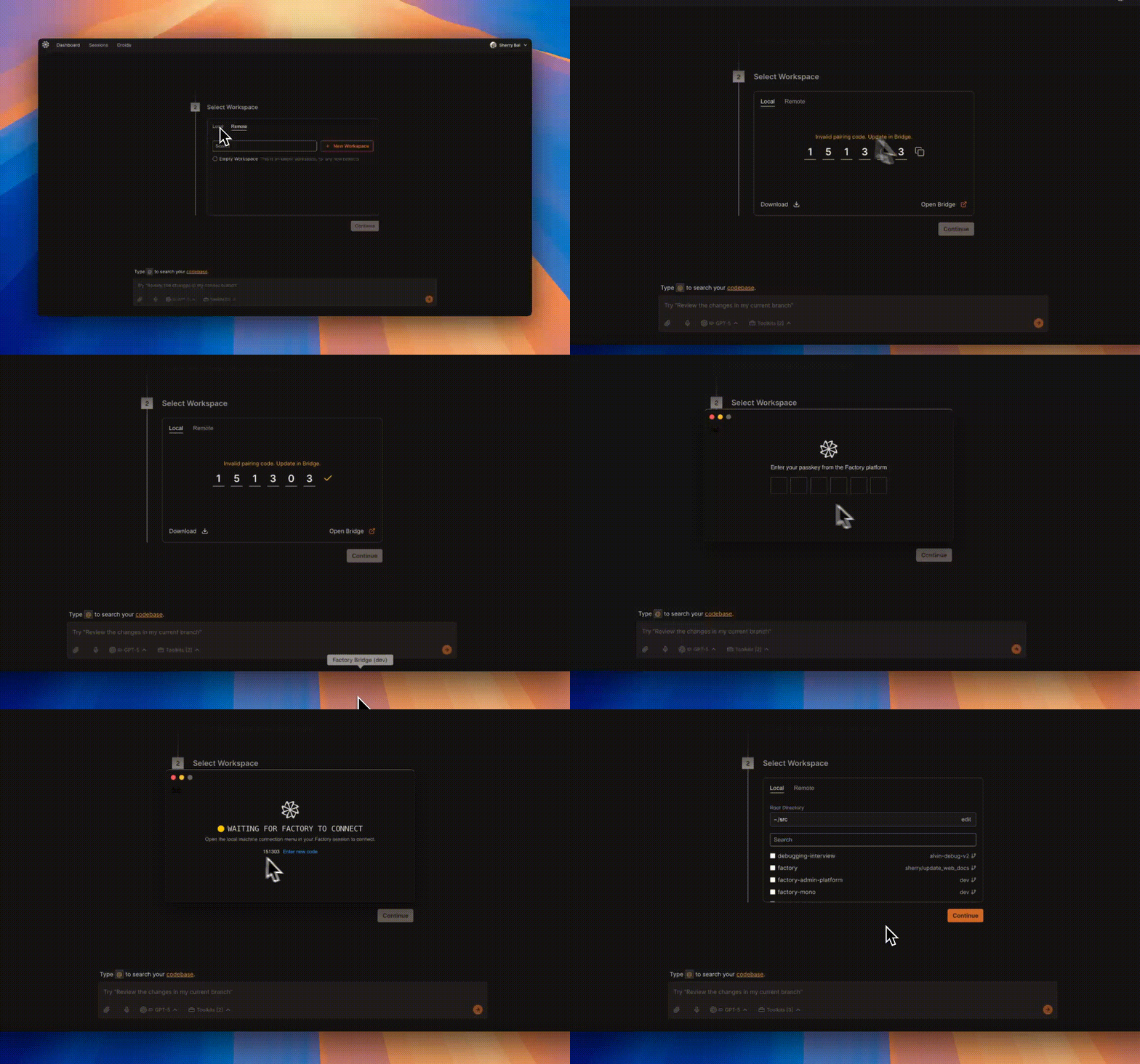
Remote Connection
Connect to a remote workspace (requires GitHub or GitLab integration).See our Integrations guide to connect GitHub or GitLab for remote workspaces.
Step 3: Explore Your Codebase
Step 4: Make Your First Code Change
Request a Simple Modification
Try a simple modification to see Droid in action:Droid will:
- Analyze your current logging setup
- Propose specific changes with a clear plan
- Show you exactly what will be modified
This transparent review process ensures you maintain full control over all code modifications.
Step 5: Experience Enterprise Workflows
Complex Tasks with External Context
Try more complex tasks that showcase Factory’s enterprise capabilities:
Security Audit
Integration with Team Tools
Provide context from your team’s tools using ’@’ mentions or direct links.If you’ve integrated these platforms through Factory’s dashboard, Droid can automatically read context from Jira, Notion, Slack, and other sources.
Best Practices
Be Specific with Context
Instead of: “Fix the bug”Try: “Fix the authentication timeout issue where users get logged out after 5 minutes instead of the configured 30 minutes”